


Google Home
4.0173.33K Reviews
App Specs
- Version
- Varies with Device
- Updated On
- License
- Free
- Downloads
- 1,000,000,000+
- Developer
- Google LLC
- Categories
- Lifestyle
- Platform
- Android, iOS
Screenshots
 Analysis by AppCompare
I judge a smart-home app less by how many devices it can list and more by whether it makes ordinary tasks simpler. Google Home is most useful when it gives compatible equipment one familiar place to manage, rather than making me jump between separate controls. It is a free Lifestyle app from Google LLC, and its appeal is clearest if you already use Nest, Chromecast, or Google Home devices. If your home has no compatible equipment, there may be little here to do beyond exploring the interface.
What the free app is worth
The app costs nothing to install, which makes trying it a low-commitment way to see whether Google’s approach fits your home. Its average rating is 4.1 from around 3.6 million ratings, and it has been installed over a billion times. Those figures suggest broad familiarity, but they do not guarantee that every device in a particular home will work as expected. The app is rated for Everyone and has been available since July 2013.
There is a useful distinction between free access to the app and the cost of building a smart home around it. The app itself is free, while in-app purchases are listed at prices ranging from five cents to nearly a thousand dollars per item. That broad range is not a reason to assume you need to buy anything inside the app; I would check what a particular purchase is for before spending. Hardware and services are separate considerations, so I would make the decision based on equipment I already own rather than treating the app as a complete smart-home package.
Guides and Analysis on Google Home
Where the value shows up at home
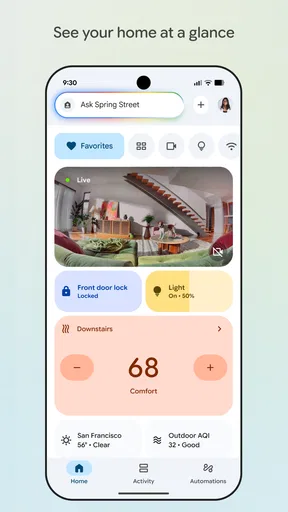
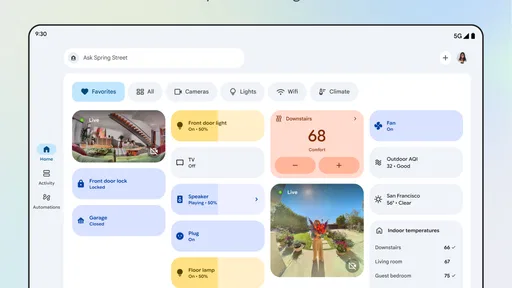
My favorite kind of value here is practical, not flashy: opening one app to check or adjust supported devices instead of remembering which manufacturer’s app handles each one. When I’m leaving, being able to bring relevant controls together can make a small but repeated task less fiddly. The benefit grows when several compatible devices are already part of the household; with just one device, a manufacturer’s own app may be just as convenient.
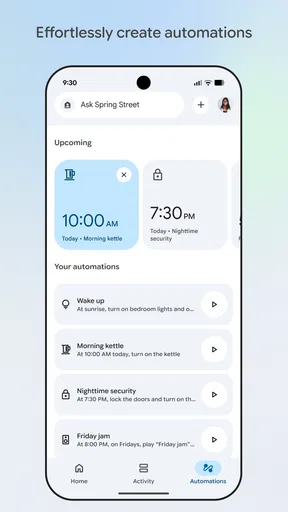
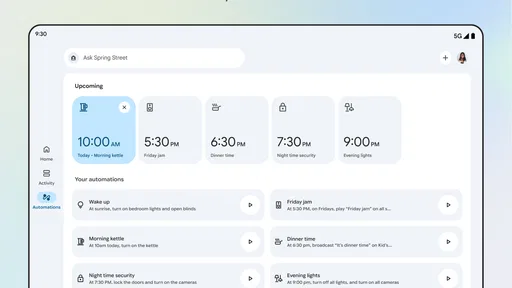
Routines can make that central control feel more personal. A routine is worth setting up when you repeat a handful of actions at predictable moments, such as preparing the living room for the evening. I’d start with a simple sequence and test each part rather than trying to automate the whole house on day one. That makes it easier to see which actions work reliably and to change the routine if it creates more friction than it removes.
Trade-offs and practical limits
The main limitation is compatibility. A device being smart does not automatically mean it can be managed in this app, so I would check support for the exact product before planning a setup around it. Even within a compatible home, the app’s usefulness depends on which devices and controls are available for that setup. If a particular device’s own app offers a setting that is missing here, keeping both apps may be necessary.
There is also a difference between centralizing controls and making every interaction better. For a quick adjustment to one device, its dedicated app may expose more detail or feel more direct. Google Home earns its place when I want a household view and recurring routines; it is less compelling if I prefer to manage every product separately or if most of my equipment belongs to ecosystems that do not fit its compatibility range.
Worth Reading Before You Choose

Baby Panda World Brings Quick Play to Modern Phones, but Its Game Library Feels Busy

ESPN’s Live Game View Makes Following Close Games Easier

QuizzLand Review: A Good Fit for Short Trivia Breaks, Not Every Player

Basketball Stars: Multiplayer Is Fast, but Can It Recover When Matches Go Wrong?

WEBTOON Turns Phone Updates Into a Better Reading Routine

Link to Windows Runs on Shared Habits, Not Social Feeds
A routine that earns its place
Picture a weekday evening: I come home, want the lights set for dinner, and would rather not open several apps or tap through unrelated controls. If the relevant devices are compatible, a routine can gather those actions into a single step. The useful part is not the novelty of automation; it is reducing small decisions at a busy time. I would keep the routine modest, with only actions I actually want every evening, and leave occasional adjustments manual.
A less obvious tip is to treat routines as experiments rather than permanent settings. Try one at a predictable time, notice whether its actions happen in the order and combination you expect, and remove anything that feels unnecessary. A routine that is too ambitious can be harder to trust than a few manual controls. Starting small also helps distinguish a problem with the routine from a device that needs attention on its own.
How it compares with other ways to manage devices
The usual alternative is to use each manufacturer’s app. That can be better when you need a product-specific setting, but it spreads everyday controls across several places. Google Home is a stronger fit when your priority is bringing compatible devices together, especially for common tasks and routines. The trade-off is that a central view may not replace every specialized control; I would keep a device’s own app when it provides something I use that the shared interface does not.
Another alternative is to rely mainly on voice control or a device’s physical controls. Those can be quicker for a simple command, while an app is more useful when I want to see the available controls or manage a group of devices in one place. I would not choose Google Home just to avoid every other method. It works best as a convenient layer alongside the controls that already make sense for each device.
Who is most likely to benefit
I would recommend it first to someone who already owns compatible Nest, Chromecast, or Google Home equipment and wants a clearer way to manage it. It also makes sense for a household where more than one person needs access to everyday controls, provided the devices and account setup suit that household. The app is free to try, so an existing owner can explore its value without first committing to an app purchase.
I would be more cautious if I were starting from scratch and choosing hardware only because I expected this app to control it all. First make a list of the devices and functions you actually want, then check that the exact products are supported. Someone who owns only one device and already likes its dedicated app may gain very little by adding another interface. Likewise, anyone looking for a universal controller for every smart product should treat compatibility as a real boundary, not an assumption.
That is the practical answer to whether it is worth using: the app is free, but the value depends on your equipment and habits. There is no need to pay for access just to test whether its controls fit your existing setup. If a purchase appears in the app, I would consider it separately and check its purpose and price rather than treating it as essential to the basic experience.
Getting Started with Google Home
Setting up the Google Home app is as easy as pie. Once you download and open it, you’re greeted with a clean interface that’s both intuitive and easy to navigate. The app walks you through connecting to your Google account and setting up any compatible devices you have lying around. Trust me, even if you’re not super tech-savvy, you’ll find it a breeze.
Managing Your Smart Devices
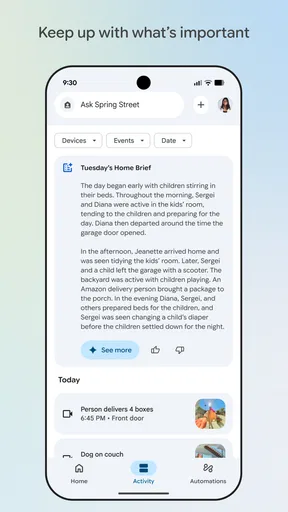
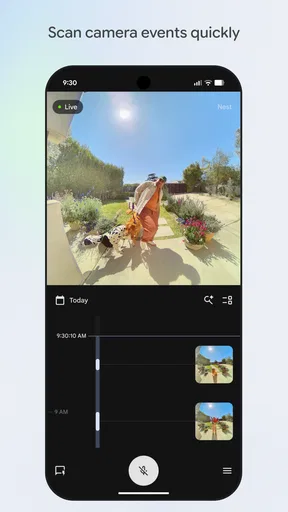
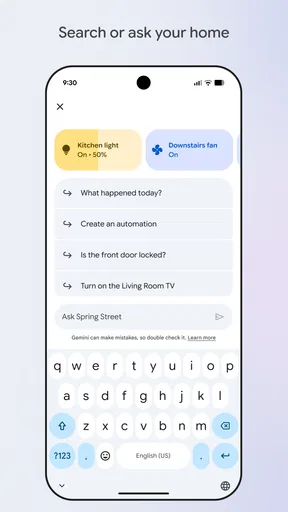
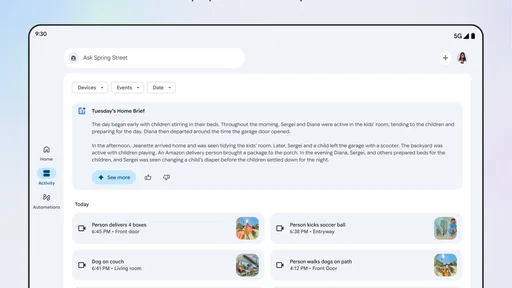
One of my favorite features is the ability to control all my smart devices from one central hub. Whether it’s adjusting the thermostat, turning off the lights, or even checking who’s at the door through a smart camera, the app handles it all with ease. It’s like having a universal remote for your home, and honestly, it’s quite liberating.
Plus, the app allows you to create custom routines. Imagine waking up to your favorite playlist, the lights turning on gradually, and the coffee machine starting to brew—all with a single command. It’s like living in the future!
Integration and Compatibility
One thing that really stands out is the app’s compatibility with a wide range of devices and services. From Philips Hue lights to Nest thermostats, and even third-party services like Spotify and Netflix, the integration is seamless. Google has done an excellent job ensuring that the app plays nice with others, which is a huge plus in my book.
User Experience and Design
The design of the app is sleek and modern, with a focus on usability. The layout is intuitive, making it easy to find what you’re looking for without any fuss. I love how responsive the app is; commands are executed almost instantly, and there’s very little lag.
Also, the app keeps updating with new features and improvements, which is always a good sign. It shows that Google is committed to enhancing user experience continuously.
Final Thoughts
Overall, the Google Home app is a must-have for anyone looking to streamline their smart home experience. It’s user-friendly, highly functional, and constantly evolving. Whether you’re a smart home newbie or a seasoned pro, this app is bound to make your life a little bit easier and a whole lot smarter. So, if you haven’t already, give it a try—you won’t be disappointed!
Pros
- User-friendly interface for easy navigation.
- Seamless integration with smart devices.
- Customizable routines for automation.
- Voice commands are responsive and accurate.
- Regular updates improve functionality.
Cons
- Limited compatibility with non-Google devices.
- Privacy concerns with voice recordings.
- Occasional connectivity issues.
- Requires stable internet for optimal use.
- Complex setup for multiple users.
FAQs for Google Home
What devices are compatible with Google Home?
Google Home is compatible with a variety of smart devices including smart lights, thermostats, TVs, and speakers from manufacturers like Philips Hue, Nest, and Samsung. It works seamlessly with Android and iOS devices, allowing users to control connected gadgets through voice commands or the Google Home app.
How do I set up Google Home for the first time?
Setting up Google Home is straightforward. Start by plugging in your device and downloading the Google Home app on your smartphone. Follow the in-app instructions to connect your Google Home to your Wi-Fi network and link your Google account. The app will guide you through customizing settings and adding compatible devices.
Can Google Home recognize multiple users?
Yes, Google Home can recognize up to six different voices. This feature allows each user to receive personalized responses based on their preferences, calendars, and playlists. To set it up, each user should link their Google account and voice to the device via the Google Home app.
What are some common commands I can use with Google Home?
Google Home supports a wide range of commands. You can ask it to play music, set reminders, control smart home devices, check the weather, and answer general knowledge questions. Simply start with 'Hey Google' or 'OK Google' followed by your command. The app provides a list of popular commands to explore.
Is my data safe with Google Home?
Google Home prioritizes user privacy and data security. Voice recordings are stored securely, and you can manage or delete them via the Google Home app. Google provides transparency on data usage and offers options to control your privacy settings, ensuring your information is handled with care.


